A quick website accessibility check you can do yourself, step by step
You don't need special software to find the barriers that stop customers from booking, buying or getting in touch. A keyboard, your browser's zoom and a free contrast checker will catch the most common ones. We show each step on our own site.
This article was created using artificial intelligence (AI). Published under the editorial responsibility of MEZA P.S.A. Accurate as of 11 October 2026.
As of 11 October 2026. We took the screenshots on our own website in Chrome and checked contrast with WebAIM’s free Contrast Checker. Requirements below refer to WCAG 2.2 level AA, the current version of the W3C guidelines and the usual benchmark for business websites.
Most accessibility problems are invisible when you use a site the way you always do. They show up as soon as you put the mouse away, zoom in or look at your colours with a contrast tool. Pick the three pages that matter most to your business, usually the home page, your main service or product page, and the page where people book, pay or contact you. Then work through the steps below.
What you need
- a laptop or desktop with a keyboard;
- a current browser (Chrome, Edge, Firefox or Safari);
- the free WebAIM Contrast Checker at webaim.org/resources/contrastchecker;
- somewhere to note what you find.
Step 1: Put the mouse away and press Tab
Click in the address bar, then press Tab. Each press moves the keyboard focus to the next link, button or field. Shift + Tab moves back.
On a well-built site, the first Tab reveals a “Skip to content” link. It lets keyboard and screen reader users jump past the menu that repeats on every page. WCAG requires a way to bypass repeated blocks (success criterion 2.4.1, level A).

Step 2: Can you always see where you are?
Keep pressing Tab. Every link and button should get a clear outline, underline or colour change. This is the visible focus indicator (2.4.7, AA).

As you go, watch for three things:
- The outline never disappears. If you lose track of where you are, that’s a fail.
- The order makes sense. Focus should follow the reading order, top to bottom, left to right.
- Nothing covers it. A sticky header, cookie banner or chat bubble mustn’t completely hide the focused item. This is a new criterion in WCAG 2.2 (2.4.11, AA).
Step 3: Use menus and controls with the keyboard only
Everything you can do with a mouse should work from the keyboard (2.1.1, level A). Try:
- drop-down menus: Enter or Space opens them, Escape closes them;
- buttons and links: Enter does the same as a click;
- date pickers, sliders and select lists: arrow keys change the value;
- pop-ups and dialogs: Escape or a keyboard-reachable close button dismisses them.
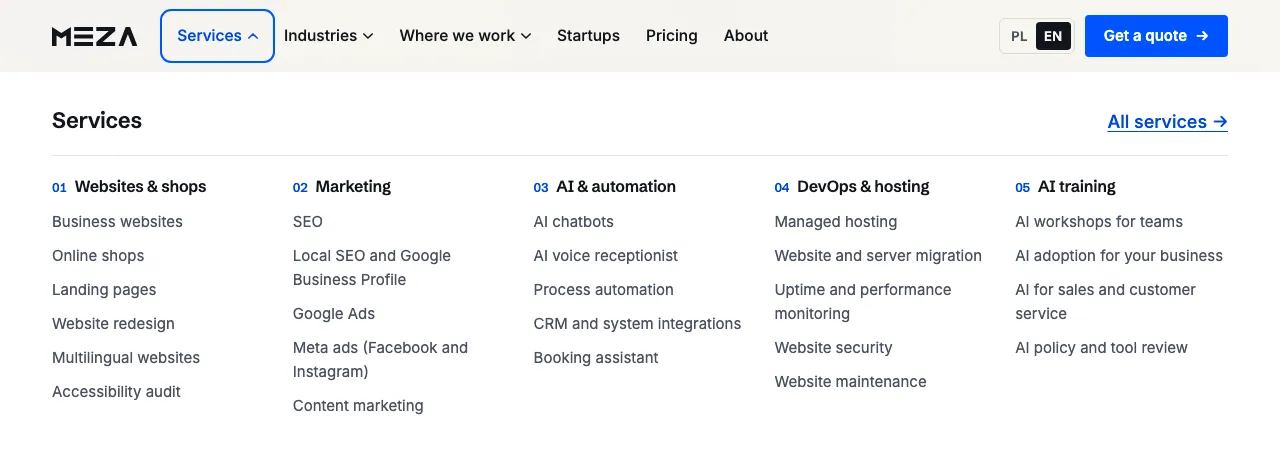
The worst result is a keyboard trap: you tab into a widget, often an embedded booking calendar or a chat, and can’t tab out again. For someone who can’t use a mouse, that’s the end of the booking.
Step 4: Zoom to 200%
Press Ctrl and + (on a Mac, Cmd and +) until your browser shows 200%. Text must be resizable to 200% without losing content or functionality (1.4.4, AA).
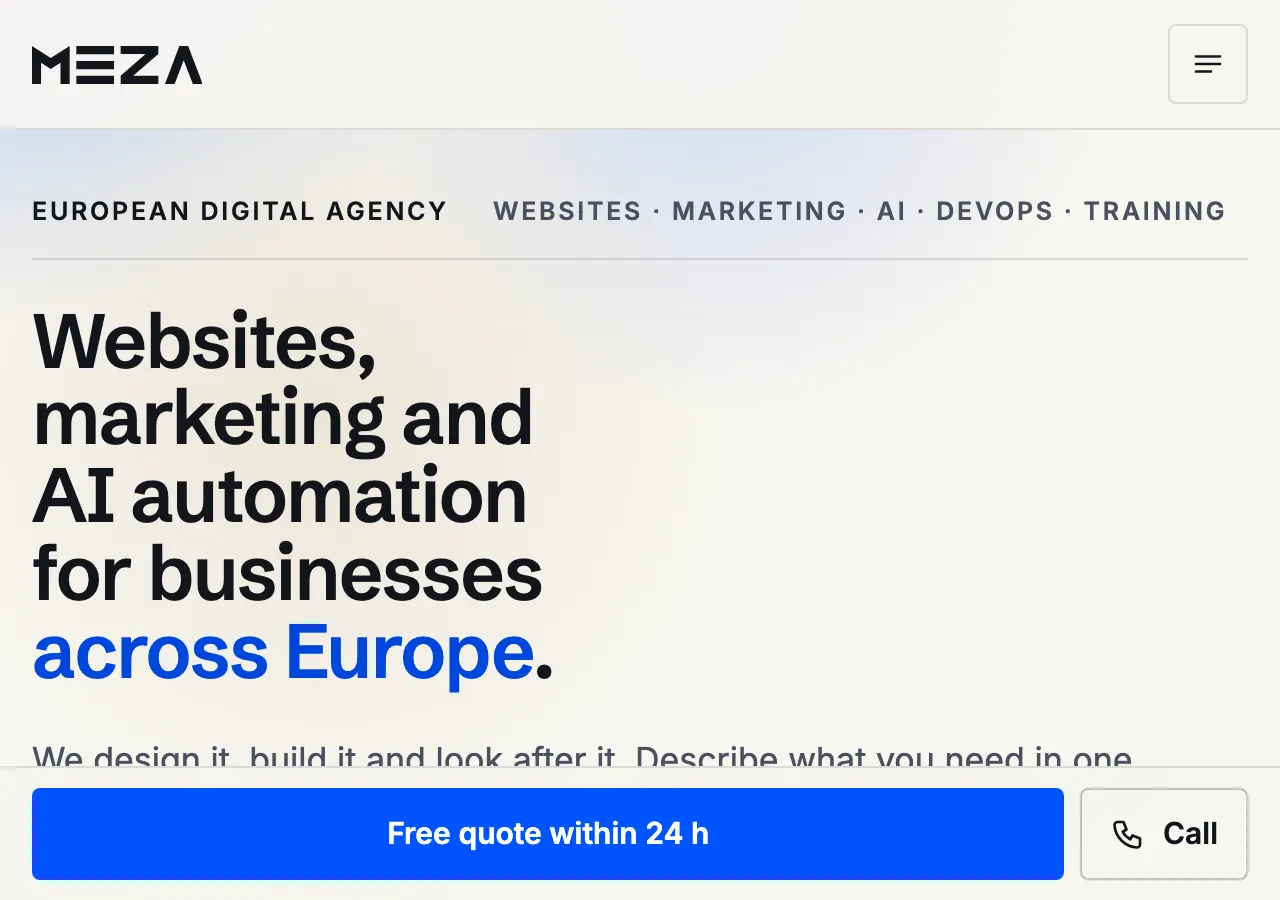
Check that:
- text wraps instead of running off the right edge;
- you never need to scroll sideways to read a sentence;
- the menu still opens;
- buttons and fields don’t overlap.
For a stricter test, zoom to 400%. WCAG’s reflow criterion (1.4.10, AA) expects content to work without two-way scrolling at a width of 320 CSS pixels, which is roughly what 400% looks like on a standard laptop screen.
Step 5: Check that every form field has a label
Tab into your contact, booking or checkout form. Each field needs a visible label, such as “Name”, “Email” or “Message” (3.3.2, level A).
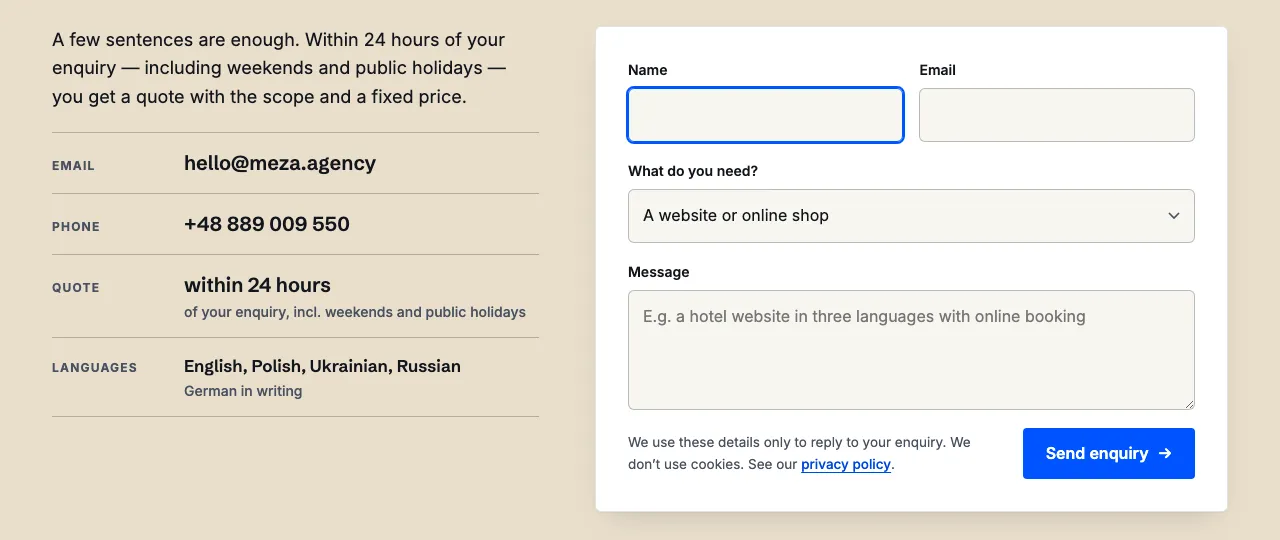
Grey placeholder text inside the field is not a label. It disappears as soon as someone starts typing and isn’t always announced by screen readers. A quick test: click on the label text. If the cursor jumps into the field, the label is correctly connected.
Step 6: Measure colour contrast
WCAG sets these minimums at level AA:
| Element | Minimum contrast |
|---|---|
| normal text | 4.5:1 |
| large text (18 pt, or 14 pt bold, and above) | 3:1 |
| input borders, icons, button states | 3:1 |
Get your colours from your brand guidelines or with the colour picker in your browser’s developer tools (F12). Enter the text colour under Foreground and the background colour under Background in the WebAIM Contrast Checker.
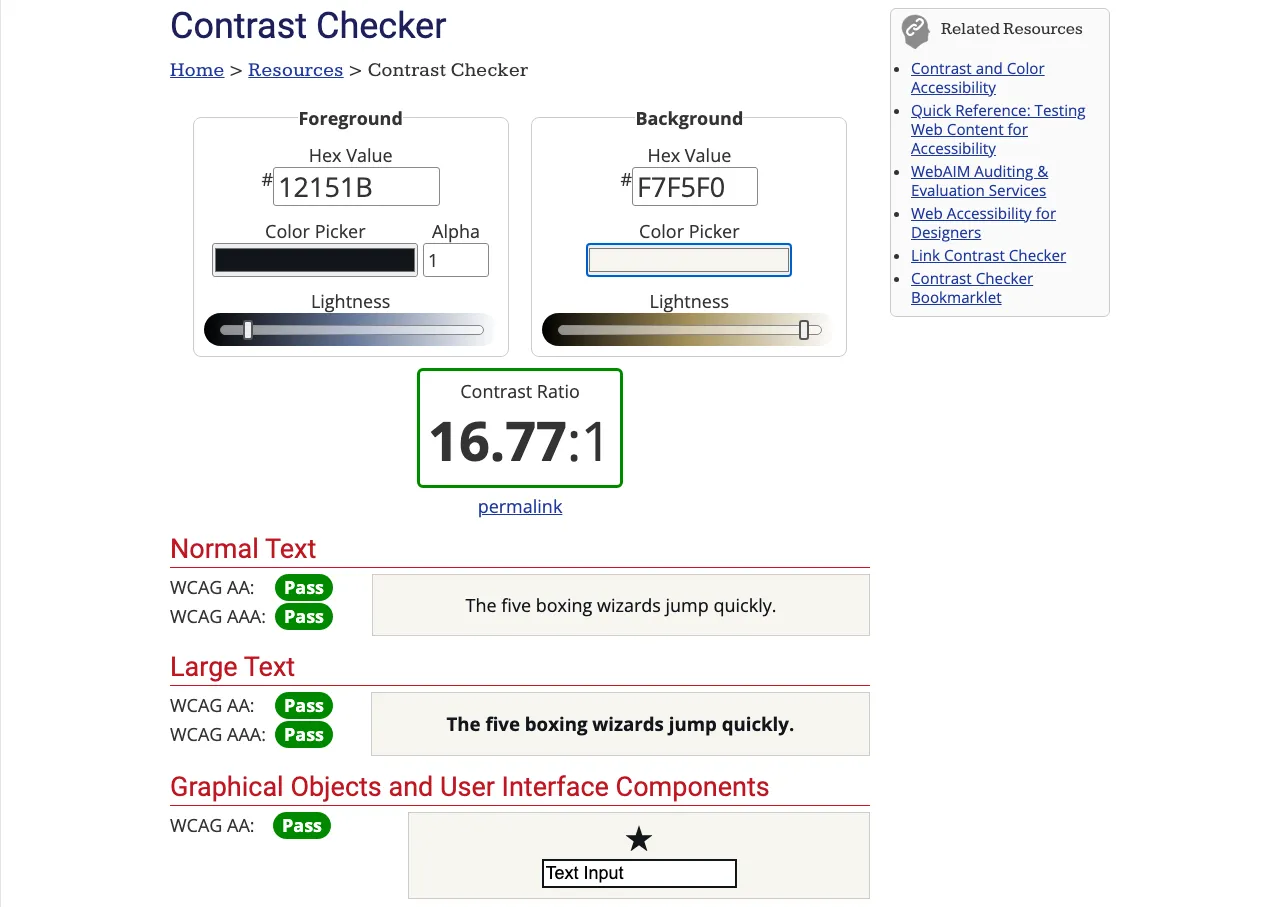
Our body text scores 16.77:1, well above the minimum. Light grey text is a common trouble spot. Here’s #9A9A9A on white:
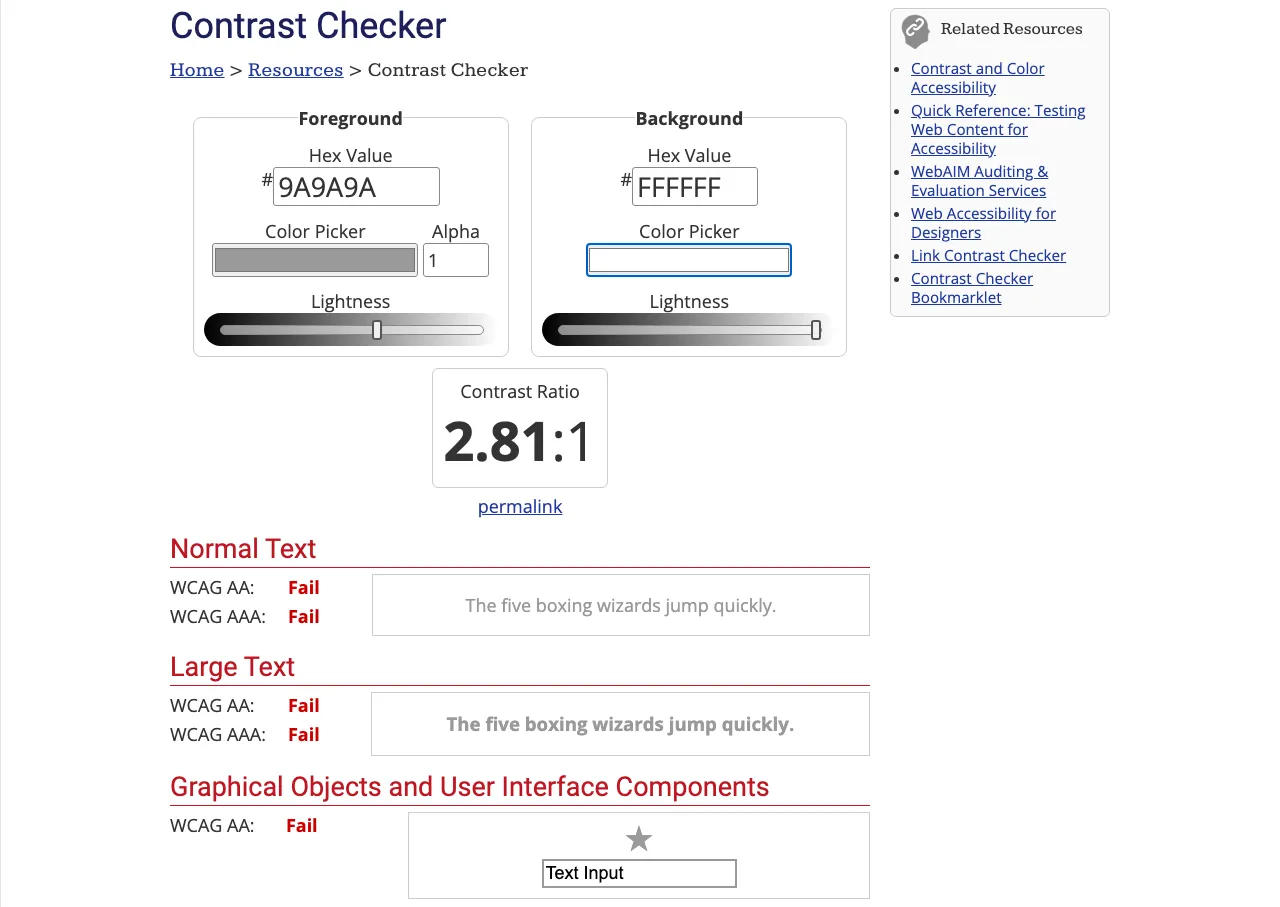
At 2.81:1 it fails even the large-text threshold. Look out for light grey in small print, image captions, form placeholders and text placed over photos.
Step 7: Look at image descriptions and link text
Images that carry information need a text alternative that a screen reader can read out (1.1.1, level A). Purely decorative images should have an empty description so that screen readers skip them.
To check one image, right-click it, choose Inspect and look for alt=”…” in the highlighted code. Then ask whether the description does the same job as the image:
- “image” or “IMG_2041.jpg” says nothing;
- “Logo” on a logo that links home is better written as “[Business name] — home page”;
- “Double room with a sea-view balcony” in a B&B gallery is useful;
- no alt attribute at all is an error, and a screen reader may read out the file name instead.
For pages with many images, the free WAVE tool from WebAIM (wave.webaim.org) flags images without alt text. It can’t judge whether a description makes sense; that part is up to you.
While you’re there, read your link and button text on its own. Screen reader users often move through a list of links. Five links called “Read more” tell them nothing. WCAG expects the purpose of a link to be clear from its text or its context (2.4.4, level A). Icon-only buttons, like a magnifying glass or a basket, need an accessible name too.
Recording what you find
A simple table is enough:
| Page | Step | Problem | Impact |
|---|---|---|---|
| Checkout | 2. Focus | no visible outline on the “Pay” button | blocks keyboard users from paying |
| Contact | 5. Labels | phone field has placeholder text only | harder to complete the form |
| Home | 6. Contrast | grey caption at 2.8:1 | hard to read |
Fix whatever blocks a purchase, booking or enquiry first: keyboard traps, missing labels and invisible focus.
This check leaves out a lot, including screen reader testing, captions, error messages and time limits. To go one step further, turn on VoiceOver on a Mac (Cmd + F5) or install the free NVDA screen reader on Windows and try to send your contact form.
The legal side, briefly
In Ireland, the European Accessibility Act applies to e-commerce and certain other consumer services, with an exemption for services provided by microenterprises. In the UK, the Equality Act 2010 requires reasonable adjustments for disabled people. We explain both in our guide to website accessibility in Ireland and the UK. This is not legal advice.
How we can help
Our accessibility audit goes through your key customer journeys with a keyboard, a screen reader, zoom and high-contrast mode. We report against WCAG with priorities, fix what blocks customers and test again. We work remotely with businesses in Ireland and the United Kingdom.
You’ll get a free, fixed-price quote within 24 hours, weekends and public holidays included.
- W3C — Web Content Accessibility Guidelines (WCAG) 2.2, W3C Recommendation, 12 December 2024 · accessed 11 October 2026
- WebAIM — Contrast Checker (free, no sign-up) · accessed 11 October 2026
This article was created using artificial intelligence (AI). Published under the editorial responsibility of MEZA P.S.A. Accurate as of 11 October 2026.
Questions we hear most often
Can't find your question? Write or call — we'll give you a straight answer, no strings attached.
[email protected]+48 889 009 55001Is this check enough to meet the law?
No. It finds obvious barriers quickly, but it doesn't cover every WCAG success criterion, such as screen reader behaviour, error messages or time limits. Whether a law applies to you, and what it requires, depends on your business. This is not legal advice.
02What colour contrast do I need?
Under WCAG 2.2 level AA, normal text needs a contrast ratio of at least 4.5:1. Large text (at least 18 point, or 14 point bold) and interface elements such as input borders and icons need at least 3:1.
03Which browser should I use?
Any current browser works. In Safari on a Mac, the Tab key skips links by default. Turn on the option to highlight each item on a webpage with Tab in Safari's Advanced settings.
04How often should I repeat the check?
Whenever something changes: a new theme, colours or fonts, a chat widget or cookie banner, a new form or booking module. If nothing changes, a review every few months is enough.
Related services
Services2
See also
Website accessibility for small businesses in Ireland and the UK: the European Accessibility Act and UK law explained
A plain-English guide for small businesses: Ireland's S.I. No. 636/2023 implementing the European Accessibility Act, who is covered and exempt, enforcement and penalties, and how the UK Equality Act 2010 differs. Not legal advice.
websitesHow much does a website cost for a small business in the UK and Ireland in 2026
Small business website costs in the UK and Ireland in 2026: dated price ranges from public guides, what drives the price, running costs, VAT, Ireland's Grow Digital Voucher and questions to ask before you sign.
AI ActAI receptionists for small clinics and salons in Europe: what the AI Act requires from August 2026
A practical guide to the EU AI Act for small clinics and salons using AI receptionists and chatbots: Article 50 transparency, provider and deployer roles, Regulation (EU) 2026/1744, health data under GDPR and a launch checklist.
Tell us about your project. Free quote within 24 h.
A few sentences are enough. Within 24 hours of your enquiry — including weekends and public holidays — you get a quote with the scope and a fixed price.
- [email protected]
- Phone
- +48 889 009 550
- Quote
- within 24 hoursof your enquiry, incl. weekends and public holidays
- Languages
- English, Polish, Ukrainian, RussianGerman in writing
Thank you, we’ve received your enquiry.
You’ll get your quote within 24 hours, including weekends and public holidays.